Optimize windows - Delete Junk - Temporary Files

When windows is running, it creates a lot of temporary files. But when it shuts down, somme of the temporary files are left in the system disk. The files are not used any more, but  they slow down the data access speed to system disk and the the computer running speed.

You can avoid this problem  if you use the popular third-party program,. CCleaner : 

(CCleaner is a freeware system optimization, privacy and cleaning tool. It removes unusedfiles from your system)


Speed up your computer and ensure a longer life for your hard drive


If I asked you the question: "which part of your computer is the most fragile", what would you say? What if I asked: which part is most important to you?
Often, the answer to both of these questions is your Hard Drive.
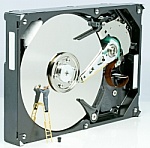
Your hard drive is likely one the most important things you own. It contains work  data, school data, emails, photos, music, movies, tax information, etc…


Maximizing the life of your hard drive and speed up your computer with defrag:

The hard drive will become heavily fragmented after some weeks of computer use. Defragmentation basically reduces the amount of fragmentation in file systems. It organizes the contents of the disk which can drastically improve performance,  maximize the life of your hard drive and prevent data loss.

. .

Top 4 Reasons Why Your Computer Is Slow?

All computers slow down with use. The more you install and uninstall software, add and delete files, change personal preferences and tweak system configurations, the more you leave a trail of file remnants, fragmented drives, registry conflicts, and errors that impair PC performance.

Even a new PC may show premature signs of “age” — that is, longer processing times, system crashes, and programs that lock up inexplicably. The frustrated PC owner may give up on an “old” computer with perfectly good hardware to purchase a brand new unit — only to repeat the cycle.

Spyware, insufficient memory, and worn-out hardware are usually blamed for waning performance.

But while spyware’s a factor in many PC slowdowns, it’s rarely the only factor. And while your system may have loads of RAM, it still won’t suffice if your system manages memory badly.

As for the age of your hardware, there’s no physical reason why it should run any slower than the day you bought it.

So what’s the really behind all those PC slowdowns?

According to a recent analysis of over half a million computers, the top four PC speed killers are:

1. Registry Errors, Clutter, and Fragmentation
Your Windows registry contains key information for everything on your system, including user profiles, software settings, hardware configurations, and so on.

As you engage in your normal computing activities, the registry gradually fills with clutter and begins to generate errors. Why? Because long after you’ve uninstalled a download, references to that download remain in the registry, leaving Windows to deal with invalid paths.

During start up, Windows tries to load all the missing drivers, files, and applications still listed in the registry, making the boot process something like the hunt for specific phone numbers in a poorly organized address book.

Compounding the problem, your registry gets fragmented just like your hard drive. Since the registry has to be loaded into memory every time you start your computer, the bigger and more fragmented it is, the longer you’ll wait for your PC to go through its paces.

2. Hogging the Starter’s Position
Many programs load themselves partially whenever you start your PC. This makes them seem more responsive when you launch them, but with so many programs starting at once and tapping system resources, boot times and overall performance suffer.

You may want to preload a couple of favorite programs for quick access, but not all those seldom-used utilities queuing up on your taskbar.

3. Bad Internet Settings
90% of PCs owners haven’t optimized their internet settings. If you’re among this group, you’re losing bandwidth, and maybe even allowing malware to pirate portions of your bandwidth to run on your PC. Unless you optimize the way your computer communicates with the network, downloads will probably take longer than they should, and web pages may be slow to load — even over a fast connection.

4. Hard Drive Errors
Over 26% of all computers have hard drive errors. These degrade performance and may prevent you from saving or retrieving files. Worse, hard drive errors may be a sign of imminent mechanical failure that could cost you all your data

. .

How To Restore the Registry in Windows 7

 usually only takes a few minutes:

1 - Locate the Registration File you exported before making your changes to the Windows 7 Registry.
2 - Double-click on the REG file to open it.
- Next you'll be prompted with a message in a Registry Editor window:

" Adding information can unintentionally change or delete values and cause components to stop working correctly. If you do not trust the source of this information in [REG file location], do not add it to the registry. Are you sure you want to continue?"

Important: This isn't a message to be taken lightly. If you're importing a REG file that you did not export or one you downloaded from a source you can't trust, be aware that you could cause considerable damage to Windows 7, depending on the registry keys being changed.

3 - Click the Yes button.

Assuming the registry key(s) import was successful, you should receive the following message in a Registry Editor window:

The keys and values contained in [REG file location] have been successfully added to the registry.

4-Click the OK button in this window.
The registry keys contained in the REG file have now been restored to the Windows 7 Registry. If you know where the registry keys were located, you can open Registry Editor and verify that the changes were made as you expected.

5-Restart your computer.

What Is The Windows Registry?

The Windows registry is a database which stores settings and options for the operating system for Microsoft Windows 32-bit versions, 64-bit versions and Windows Mobile.

It contains information and settings for all the hardware, software, users, and preferences of the PC. Whenever a user makes changes to “Control Panel” settings, or file associations, system policies, or installed software, the changes are reflected and stored in the registry.

The registry is actually a big file where a lot of setting can be stored.

This file has been around quite a while and has had different names.

The first windows version that used the windows registry to store settings was windows 3.11 and the registry in that version of windows was called Reg.dat.

In Windows 95 & 98 the registry files are named User.dat and System.dat and are stored in the Windows directory.

Windows ME called the registry files, Classes.dat, User.dat, and System.dat and stored them in the Windows directory.

Finally the newest versions of windows like, Windows NT, 2000, 2003, & XP stores the registry files like this,

The Registry files are stored in %SystemRoot%System32Config:

In summary, the Registry is just a database, albeit an unusual and very important database. It’s no more mysterious than much else in Windows Always back it up before any system changes and you will be prepared if it stops doing its job

how to Back up the registry with Microsoft Registry Editor

You must be logged on as an administrator to accomplish these steps. If you aren't logged in as an administrator, you can only change settings that apply to your user account.

Before you make changes to a registry key or subkey, we propose that you export, or make a backup copy, of the registry. You can save the backup copy to a location you specify, such as a folder on your hard disk or a removable storage device. If you make changes that you want to undo, you can import the backup copy.
Open the Registry Editor by clicking the Start button Picture of the Start button

typing “ regedit “ into the search box, and then pressing OK.‌

 Click the File menu, and then click Export


In the Save in box, select the location where you want to save the backup copy to, and then type a name for the backup file in the File name box.
Click Save.

How To Clean the Windows Registry

The Windowsregistry is difficult to manually modify because doing so can make serious errors on a computer, so it's important to make a backup of the registry before attempting to clean.

Here’s how you can clean the registry and improve your computer’s performance.


1- Download: To clean the registry, you will have to rely on applications that are specifically designed to scan the machine. There are plenty of applications for registry cleaning in the market today, some of which are paid and some of which are free. Select  ones from reputable sources such as CNET and PC World. Make sure that the registry cleaners have been favorably reviewed by other users and by autonomous software reviewers specified as CNET.

2- Close programs: Make sure that there are no programs running in the pc when you start the windows registry cleaner
3- Backup: use The Microsoft Registry Editor (regedit.exe): Because the registry is integral to how your computer runs, you should make certainthat it is backed up before you do any changes on the registry
4-Cleaning and repairing:  Next, install the application for cleaning the registry. Afterwards, you will need to open the software and determine  the options for cleaning your registry. Each application will have its own interface and will have a number of options for cleaning the registry.
5- If you encounter problems after using the registry cleaner, use the registry restore option which The Microsoft Registry Editor (regedit.exe)


Why You Need To Clean Your Windows Registry

best-registry-cleanerRegistry is the database where data of programs and windows is stored. Registry cleaner is software, used to run your computer faster and smoother. It's very important for a smooth running of your computer system. Whenever you remove a file from your system, the registry does not remove this information. Gradually as the registry gets filled up with these databases,